
Lesson 5: Color Saturation

While the Razor tool can be used to remove parts of our Video, it can also help set up for us to apply things like Effects and Transitions. Before we get started, we will want to swap to the Advanced View
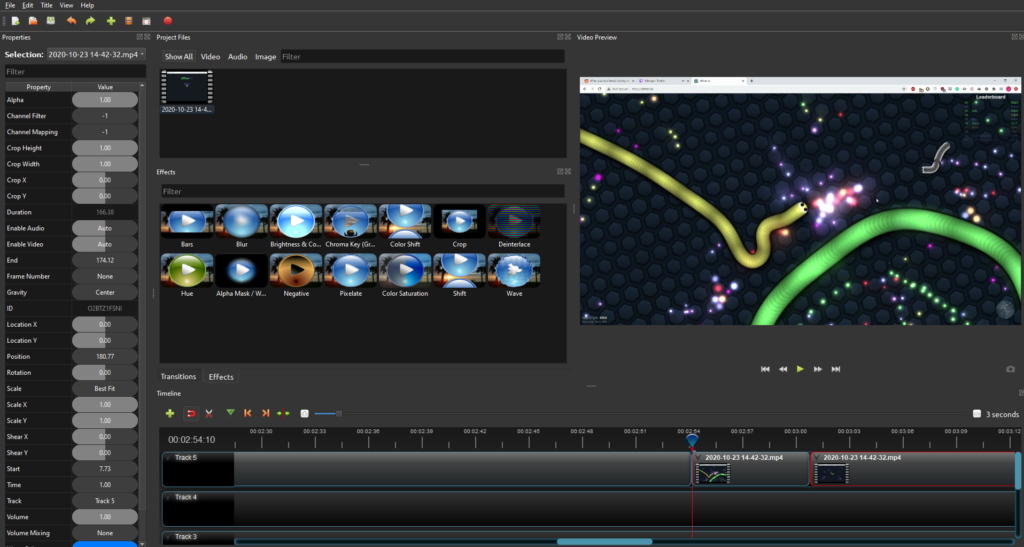
The Advanced View should give us a better view of the Effects tab, as well as the Properties tab. We will need both of these for the next step
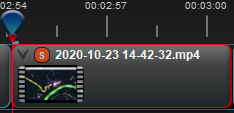
There are many different Effects, and the majority of them will be talked about in a future lesson. For now, we only care about the Color Saturation effect. Start by Dragging and Dropping it onto the clip we isolated earlier. You should see a Red square with an S inside of it appear on the clip.

Click on the red symbol to select it, and then look in the Top Left to find your properties. Make sure that Color Saturation is chosen for the Selection.
The Color Saturation effect has only one Property for us to change, the Saturation. As the saturation increases, the colors appear to be more pure. As the saturation decreases, the colors appear to be more washed-out or pale.